Billing
Transparent pricing in plain dollars.
Overview
Oya bills in plain US dollars. No tokens, no credits, no hidden multipliers. You see exactly what each action costs.
How Billing Works
Oya uses a prepaid balance model. Add funds via Stripe, and they are deducted per usage. A signup bonus is provided for new accounts so you can start building immediately.
Every charge includes a fixed platform margin. Underlying costs (LLM tokens, sandbox compute, tool calls) are marked up by a 60% gross margin, so the amount you pay is cost / (1 - 0.6), or 2.5× the raw cost. The figures below are the raw pre-margin rates.
Cost Breakdown
There are three cost types on the platform:
LLM Calls
Per-token pricing based on the model used. The exact cost of each LLM call is shown in the Run Tree per step, so you can see exactly where your money goes.
Per-Model Pricing
Each usage record shows the model name used for that call. Cost varies by model: lighter models like Gemini Flash cost significantly less than larger models. The model is displayed on each billing record so you can see exactly which model generated each charge.
Sandbox Execution
Per-second pricing based on compute (vCPU, RAM, storage). When a run's duration isn't measured, a flat default of $0.001 per run (pre-margin) applies. Either way it works out to fractions of a cent per run.
Tool Calls
A small per-call fee for tools the OAgent invokes. Built-in tools (web search, fetch URL, knowledge base search) cost $0.0001 per call, and external MCP tools cost $0.0005 per call (both pre-margin).
Cache-Aware Token Billing
LLM prompt caching is billed at reduced rates. Cached prompt tokens are a subset of the input tokens, so they are not charged the full input rate: cache reads bill at roughly 0.1× the input rate and cache writes at roughly 1.25× the input rate. Only the non-cached remainder is charged at the full input rate, so re-using a large system prompt across turns stays cheap.
Free Credits
New accounts receive a signup bonus. You can also earn a one-time $5.00 credit by connecting your GitHub account in Settings. The credit is added to your balance automatically after connecting.
Low Balance Warning
When your balance drops below $1.00, a warning banner appears showing your current balance. Clicking it opens the Add Credits dialog. At $0.00, OAgents stop responding entirely.
A run that hits an insufficient balance fails immediately and is terminal: it is not retried or requeued, because it would just keep failing until the account tops up. When this happens, the account's funding owner is emailed so they can top up (the email is deduped so repeated blocked runs don't spam). Once you add funds, new runs resume normally.
Viewing Usage
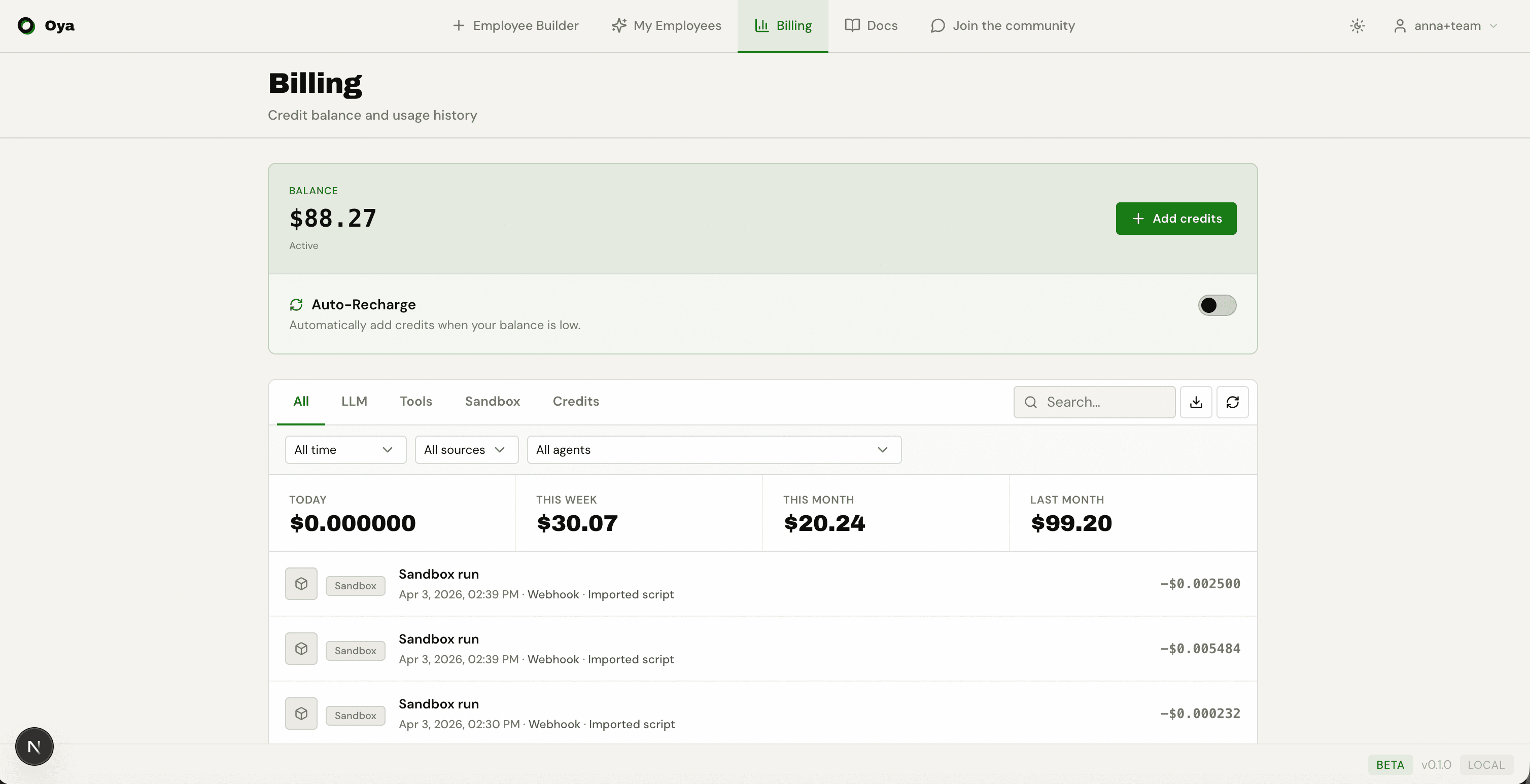
The /billing page shows your current balance, usage statistics cards (today, this week, this month, last month), and a detailed usage history table.
Filtering & Search
The usage table supports multiple filters:
- Type filter: Show All, LLM, Tools, Sandbox, or Credits records.
- Text search: Search by model name or OAgent name.
- Agent filter: Dropdown to show usage for a specific OAgent only.
- Pagination: 50 records per page with Previous/Next navigation.
Record Details
Each usage record shows the exact dollar amount charged. Additional details vary by type:
- LLM records: Show prompt tokens and completion tokens.
- Tool records: Show the tool name (web_search, fetch_url, gmail_send_email, etc.).
- Sandbox records: Show compute duration.
Cost Insights
The Insights tab (next to Usage on the /billing page) scans your recent usage and flags why an agent is expensive, so you don't have to read raw records to find a runaway cost. Each issue is ranked by impact and comes with a concrete fix.

Insights detect the patterns that quietly run up a bill:
- Context bloat: the agent re-sends a large amount of context on every step (a high input-to-output token ratio), paying to re-process the same data over and over.
- One skill driving cost: a single skill (often a CRM or list read) accounts for most of the agent's spend because its results are large and get carried forward.
- Oversized prompts: an individual call carries a very large input, usually meaning an entire dataset was loaded into one prompt.
- Expensive routine: a scheduled routine is a top cost driver and processes too much in one run.
- Spend spike: a single day cost far more than a typical day.
Cards for agents in your account also have a Fix it with Oya Engineer button: it opens the agent's Engineer with the issue and recommended fix pre-loaded, so you can apply the change without copying anything over.
Adding Funds
Payments are handled via Stripe as one-time payments (not subscriptions). The minimum amount is $1.00. Funds appear in your balance instantly after payment.
Cost Optimization Tips
- Use cheaper models (e.g., gemini-3.5-flash) for simple tasks.
- Minimize behavior rules: each rule adds to the system prompt (more input tokens).
- Use the Run Tree to identify expensive steps and optimize.
- For repetitive tasks, use automation scripts (import Python) instead of LLM-driven assistants.